

Introduction
With millions toggling between applications such as Facebook, Instagram, and TikTok daily, cross-platform interaction is unavoidable. But not everyone would prefer such sites to be linked. Perhaps due to privacy purposes, distraction limitation, or managing digital wellbeing, many users ask:
- How to block Facebook on TikTok?
- Can you block TikTok on Facebook?
- And how to block Facebook and Instagram both on TikTok?
This tutorial will outline in detail how to block Facebook on TikTok, how to block it on iPhone specifically, and how to restrict TikTok from Facebook or Meta websites.
Why Block Facebook on TikTok?
There are a number of reasons why people need to block Facebook on TikTok:
- Privacy management: Stop posting TikTok activity directly to Facebook.
- Distraction control: Prevent cross-posting that keeps you active on multiple platforms.
- Parental controls: Parents can block children from connecting Facebook and TikTok accounts.
- Data separation: Reduce data sharing between Meta (Facebook) and TikTok.
No matter your reason, blocking is a great digital well-being tool.
How to Block Facebook on TikTok
If you don’t require Facebook built into TikTok, do the following:
1. Disconnect Facebook from TikTok
- Launch TikTok and go to your Profile.
- Tap the three lines (≡) at the top right.
- Select Settings and privacy.
- Go to Account → Linked accounts.
- If Facebook is connected, tap Unlink.
2. Restrict Facebook Sharing
- When posting a TikTok, you’ll see sharing options to other platforms.
- Make sure the Facebook toggle is off.
- This ensures TikTok doesn’t automatically share your content to Facebook.
3. Manage App Permissions
- On iOS: Go to Settings → TikTok → Permissions.
- On Android: Settings → Apps → TikTok → Permissions.
- Uninstall any Facebook-related integration (if any).
How to Block Facebook on TikTok on iPhone
iPhone users typically query specifically: how to block Facebook on TikTok on iPhone?
- Open your iPhone Settings.
- Scroll down and tap TikTok.
- In permissions, check Contacts, Camera, Photos, and Sharing.
- Ensure TikTok does not have the permission to access Facebook or share content.
- Inside TikTok, go to Settings and privacy → Linked accounts → Unlink Facebook.
This avoids the interaction of TikTok with Facebook on your iPhone.
How to Block TikTok on Facebook
Sometimes the opposite happens — users want to block TikTok on Facebook.
Steps to block TikTok on Facebook:
- Open the Facebook app.
- Tap the Menu (☰) at the bottom right corner.
- Go to Settings & Privacy → Settings.
- Scroll to Permissions → Apps and Websites.
- If TikTok exists, select it and click Remove.
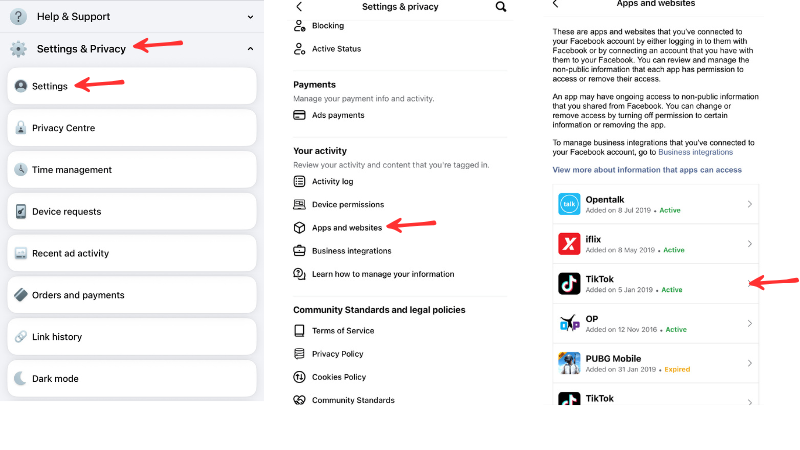
This blocks TikTok from viewing your Facebook data or posting on your behalf.
You can also:
- Block TikTok ads via Ad Preferences in Facebook settings.
- Restrict TikTok links on your timeline by modifying your privacy controls.
How to Block Facebook and Instagram on TikTok
Since Instagram and Facebook both have the same Meta owner, they often integrate with TikTok.
- Go to TikTok → Profile → Settings and privacy → Linked accounts.
- Unlink Facebook and Instagram.
- When sharing, ensure Share to Instagram and Share to Facebook switches are disabled.
- On iPhone, also go to iOS Settings → TikTok and turn off permissions that could enable sharing of data.
This shuts down both Meta applications from TikTok.
How to Block Facebook and Meta on TikTok
Meta owns Facebook, Instagram, and Messenger. To block all Meta integrations in TikTok:
- Inside TikTok, turn off Facebook and Instagram (as explained above).
- Don’t log in to TikTok using Facebook credentials — always use phone or email.
- Avoid enabling TikTok’s “Share to other apps” feature when uploading.
- On iOS or Android, go into app settings and restrict permissions for cross-app sharing.
This fully isolates TikTok and Meta.
Alternatives: Digital Wellbeing & Parental Controls
- TikTok Digital Wellbeing: Screen time control, restricted content, and app limits.
- Facebook/Instagram Family Center: Lets parents manage connected accounts and app use.
- Third-party tools: Apps like Freedom or Qustodio can block Facebook/TikTok entirely for certain hours.
Common Issues and Troubleshooting
- I don’t see Facebook in Linked Accounts on TikTok: It may not be linked. If so, you’re already disconnected.
- I blocked Facebook but still see “Share to Facebook” when posting: That’s a default option, just keep the toggle off.
- Unlink not working: Try logging out of both TikTok and Facebook, then clear app cache.
Final Thoughts
Blocking Facebook on TikTok — or blocking TikTok on Facebook — is simple once you know where to look. To unlink accounts for privacy, reduce distractions, or stop data sharing:
- On TikTok: Settings → Linked accounts to unlink.
- On Facebook: Settings → Apps and Websites to remove TikTok access.
- On iPhone: Settings → TikTok permissions to cut off Facebook integrations.
With a few adjustments, you can keep Facebook and TikTok completely separate, giving you greater autonomy over your digital life.
FAQs
How do I block Facebook on TikTok?
Go to TikTok → Profile → Settings and privacy → Linked accounts, then tap Unlink Facebook. Also ensure Facebook sharing is disabled when posting.
Can I block TikTok on Facebook?
Yes. Open Facebook → Settings & Privacy → Settings → Apps and Websites. If TikTok is listed, remove it. This stops TikTok from accessing your Facebook data.
How do I block Facebook and Instagram on TikTok?
Inside TikTok settings, unlink both Facebook and Instagram under Linked accounts. Then disable “Share to Instagram” and “Share to Facebook” when posting.
Can I block Meta integrations on TikTok?
Yes. Don’t use Facebook login, unlink Meta apps, and turn off “Share to other apps.” On iOS/Android, restrict TikTok’s permissions for cross-app sharing.
Why should I block Facebook on TikTok?
Blocking Facebook on TikTok improves privacy, reduces distractions, enforces parental controls, and keeps Meta and TikTok data separated.